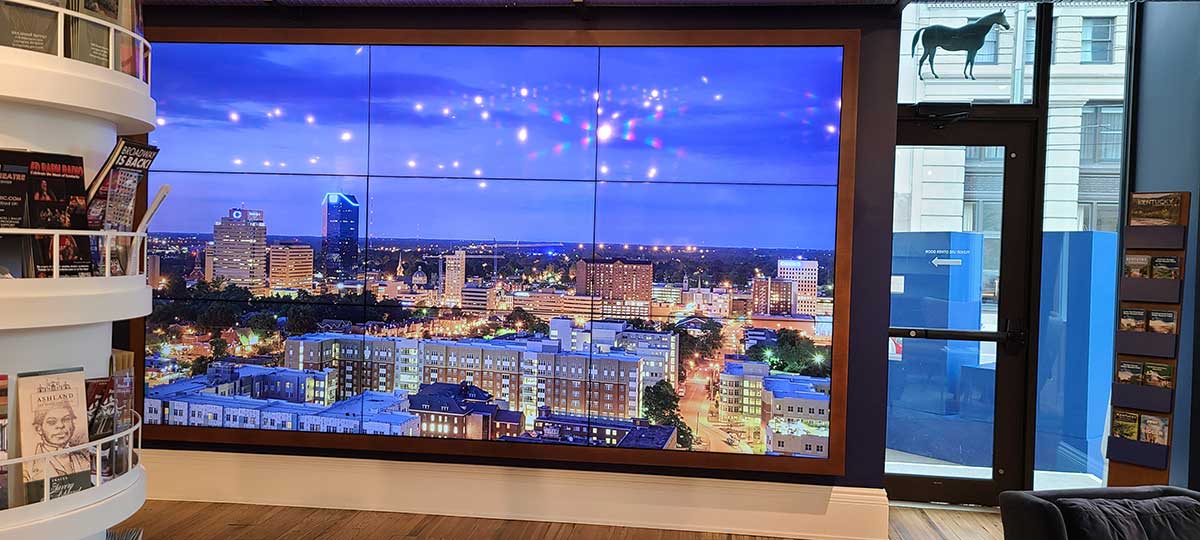
1. Download and install the BrightAuthor:connected software from https://www.brightsign.biz/digital-signage-products/software/brightauthorconnected
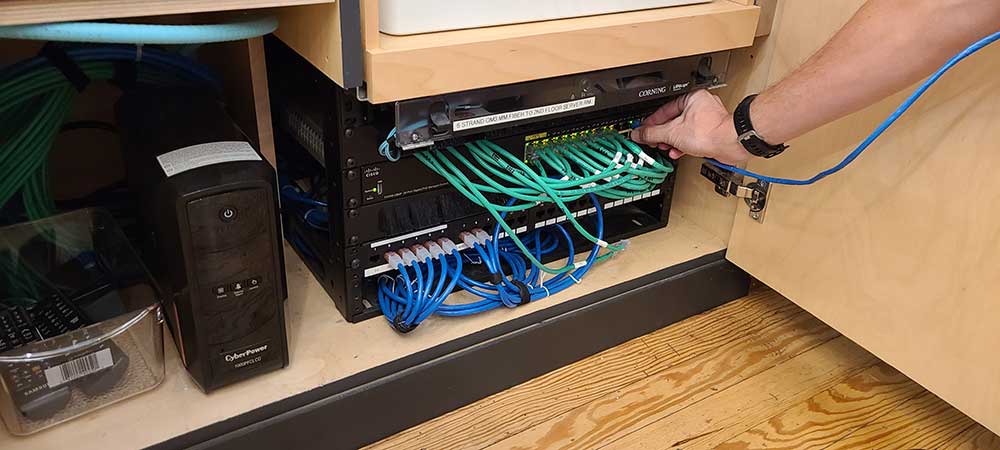
2. Plug your laptop via ethernet to an open port on the switch behind the desk
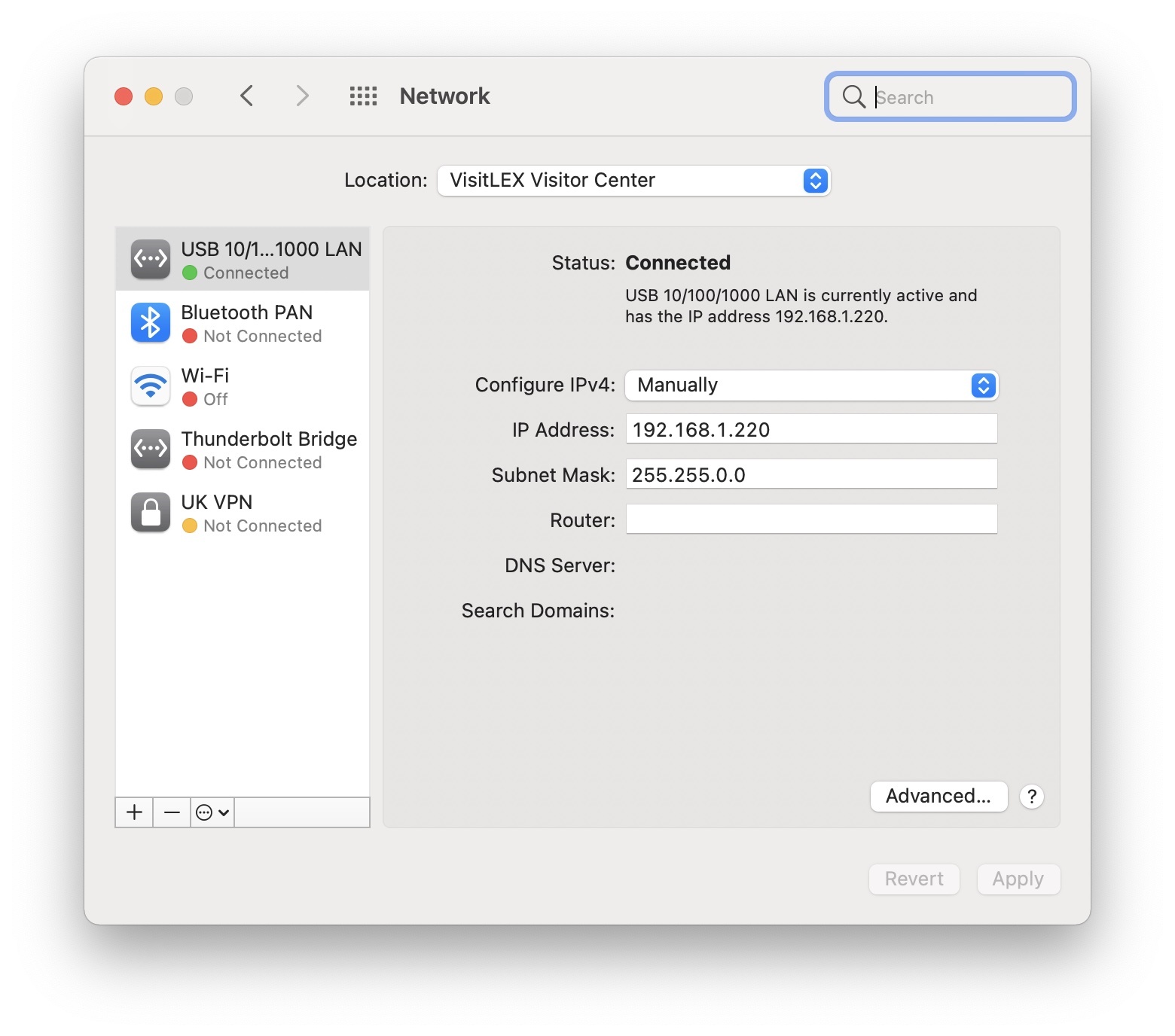
3. Disconnect your wifi and enter your network settings by going to ‘System Preferences’ and choosing ‘Network’
4. Set your ethernet connection to configure IPv4 manually with the following settings:
Subnet Mask: 255.255.0.0
IP Address: 192.168.1.220 (If there is already a device on the network with that IP address you may have to change 220 to something not taken)
5. Open your Bright Author:connect software (listed as BA connected) and go to File→Open and choose the BrightAuthor design file for the screen you're updating. The file extension should be .bpfx
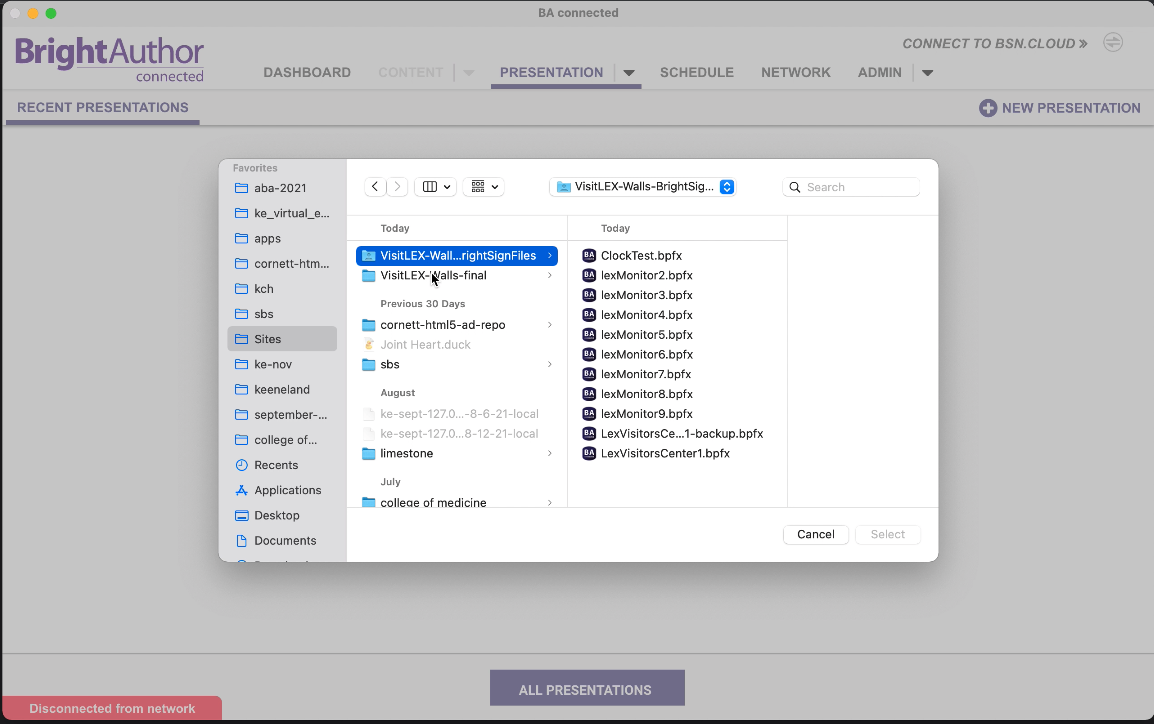
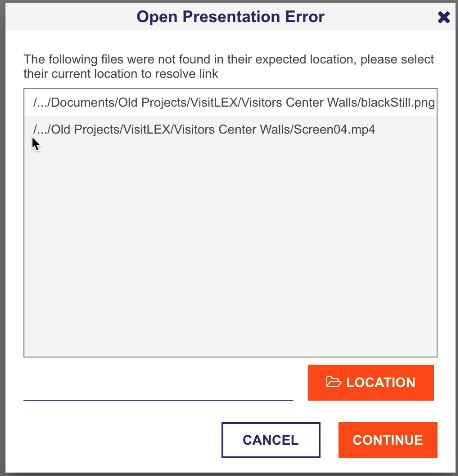
5a. If you get an ‘Open Presentation Error’ referring to missing files you will have to click ‘Location’ and browse to the folder that contains your videos
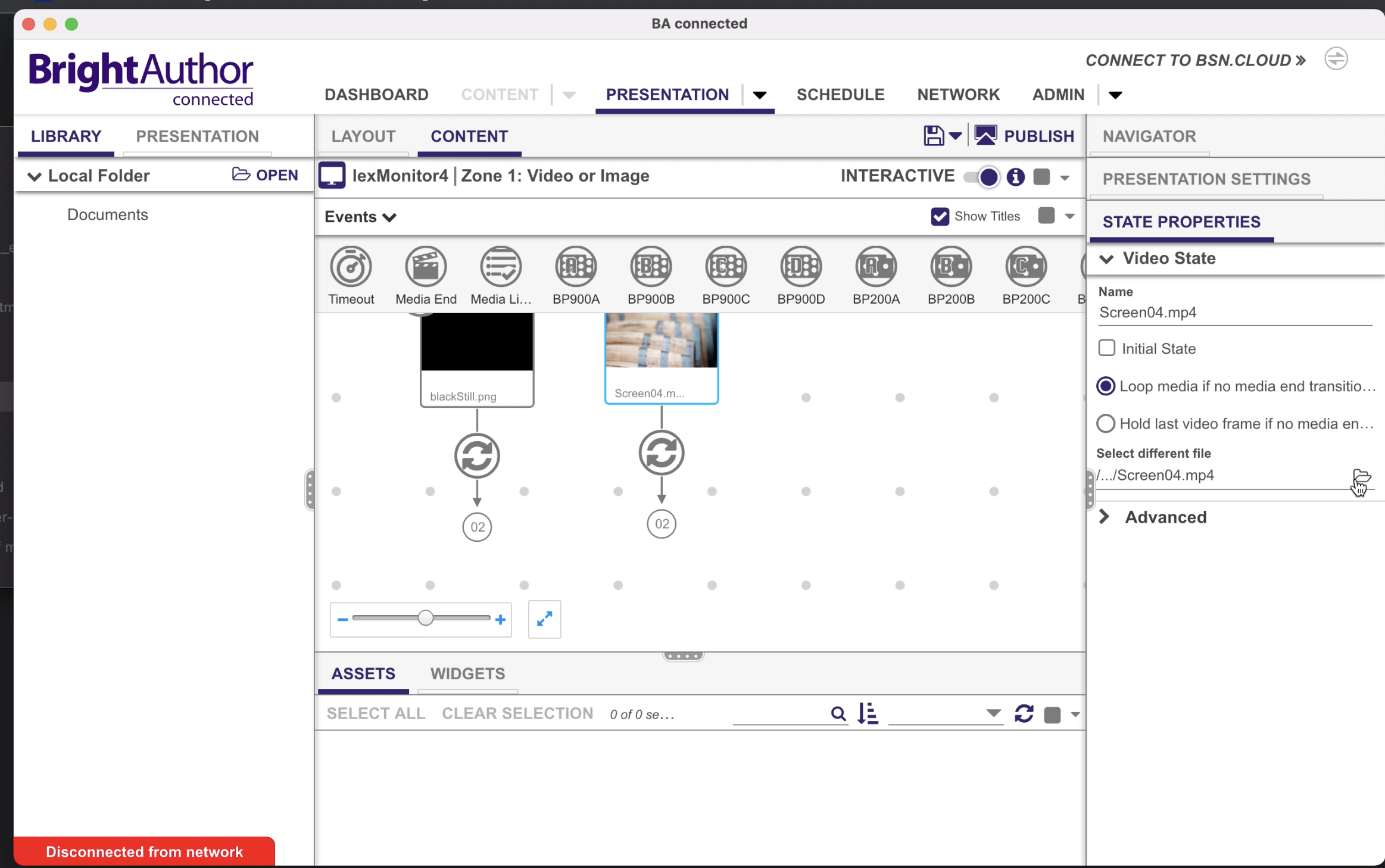
6. This should bring you to a content tab that will have a series of boxes containing the media that will play. Click on the box containing the video file you would like to replace and click on the folder icon next to ‘Select different file’
7. After choosing a new video file click ‘Publish’. If you haven't saved it will ask if you would like to at this point. Click ‘yes’
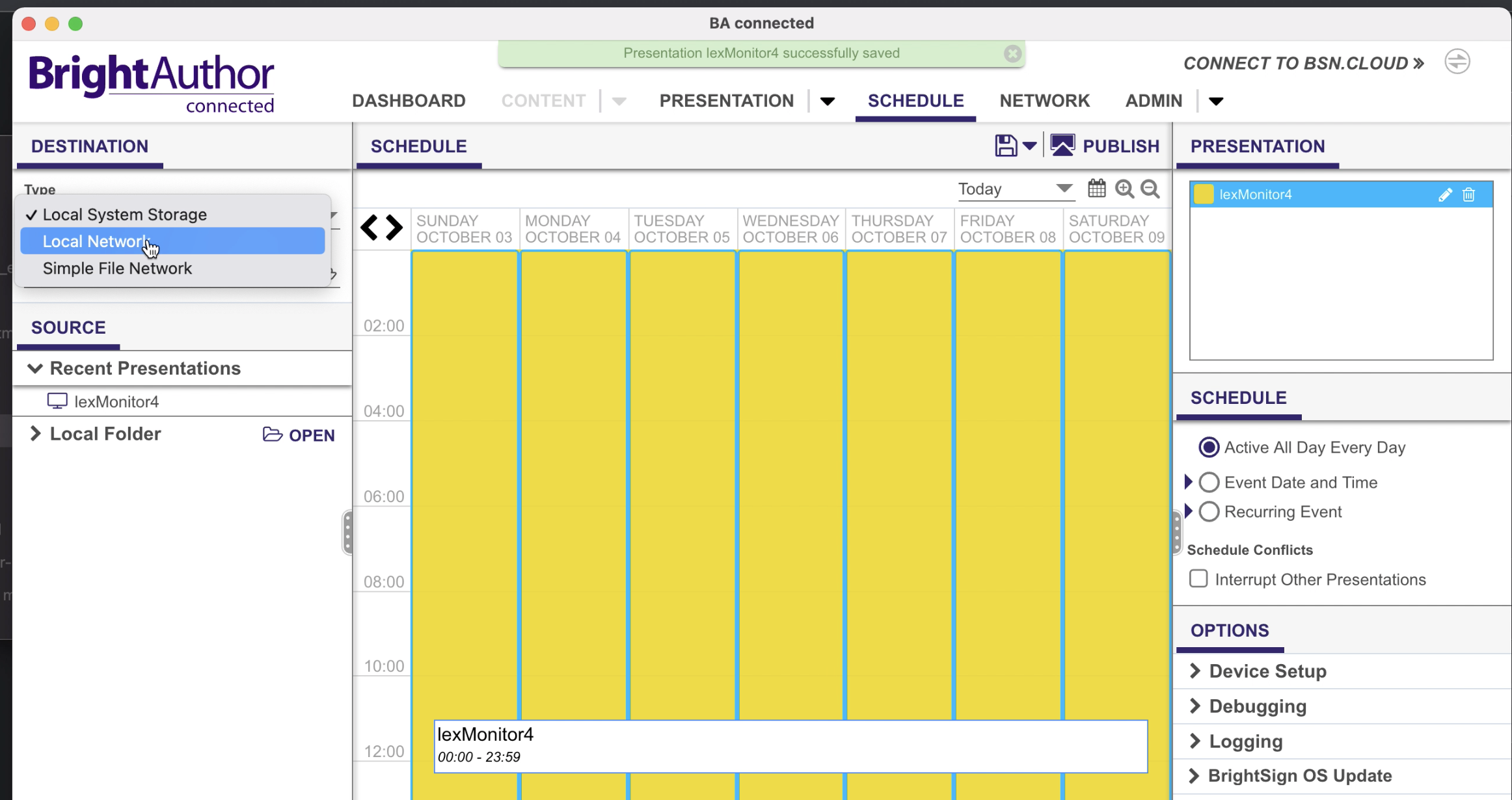
8. This will take you to the schedule tab. From here under ‘Destination’ change type to ‘Local Network’
9. This will bring up a list of ‘Networked Units’. Choose the screen that corresponds to the one you're updating.
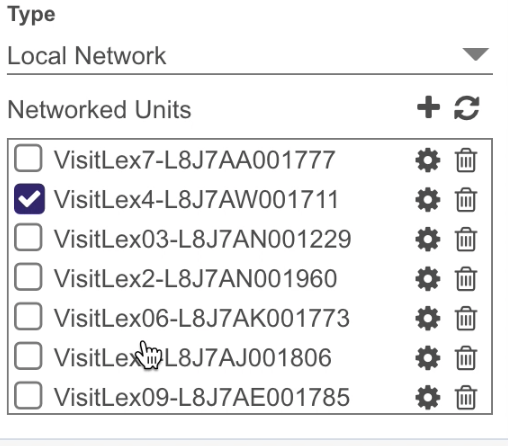
Note: The number after VisitLex corresponds to their position in the grid that follows the pattern
[1][2][3][4][5][6][7][8][9]
10. Click ‘Publish’. If you see a ‘Brightsign OS Update’ error click ‘OK’. If prompted to save choose no. If successful a progress status bar will appear at the top.

It is normal for it to appear to be stuck at 0% for a while. If it was successful the screen affected should turn black and reappear with the new video after the previous video has finished.
11. Repeat steps 5-10 for each screen.